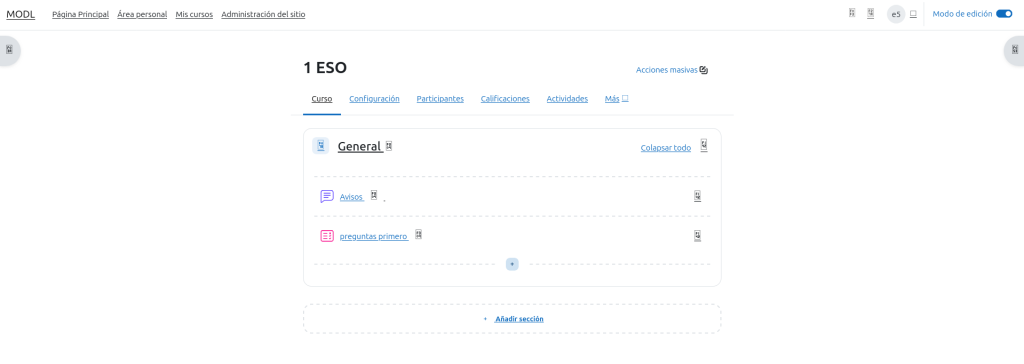
To begin creating a new assessment, select the + icon. From the menu that appears, choose ‘Quiz’
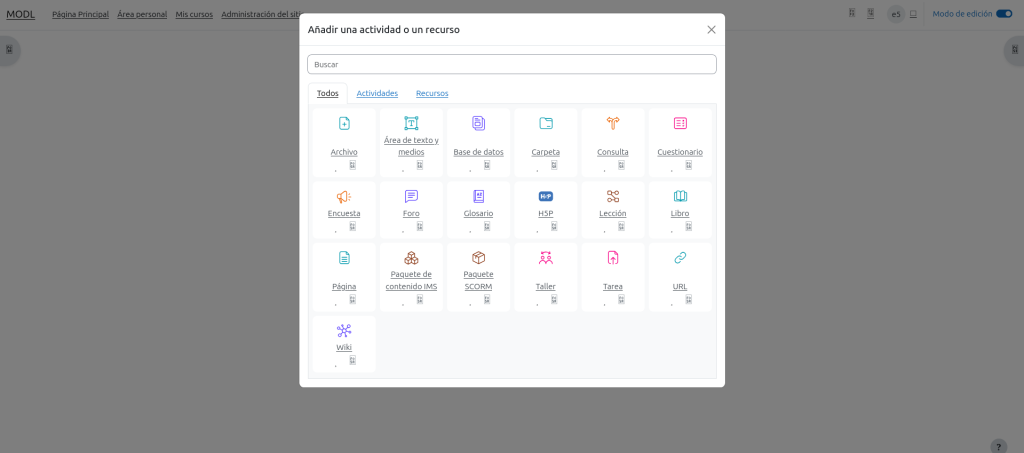
A new page will appear presenting several options. Find and choose “Quiz”.
Once the Quiz is created, the first step is to configure it. You must enter a Name and a Description

After finishing the configuration, click Save.

The next step is to insert your questions and answers. To do this, click Add and then select Add question.


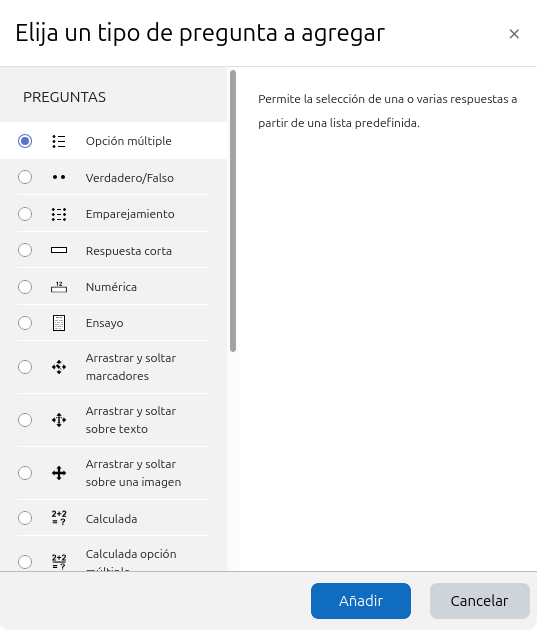
Now, select the question format. I will be using the Multiple choice option for this example.
Once the question has been created, we will need to give it a name and add text as well.
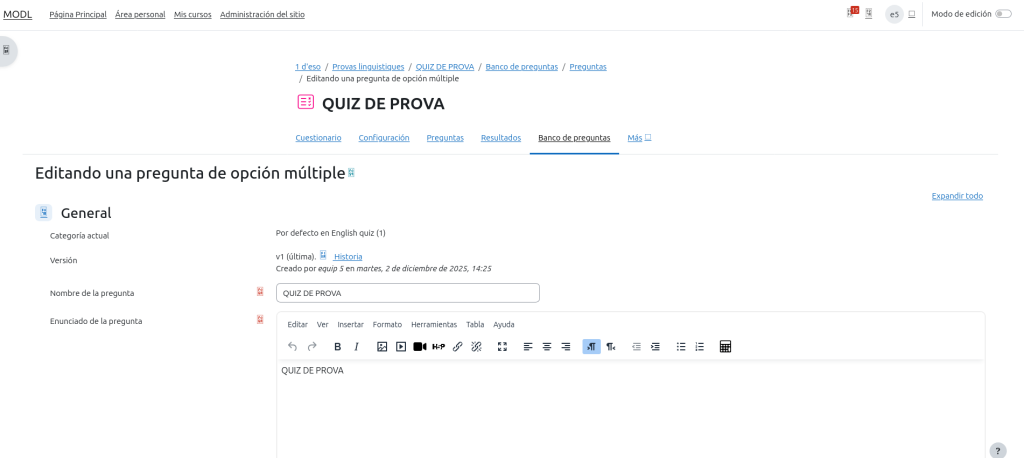
You must input the answer choices. Ensure you assign a value of 100% to the correct option so it is graded properly.
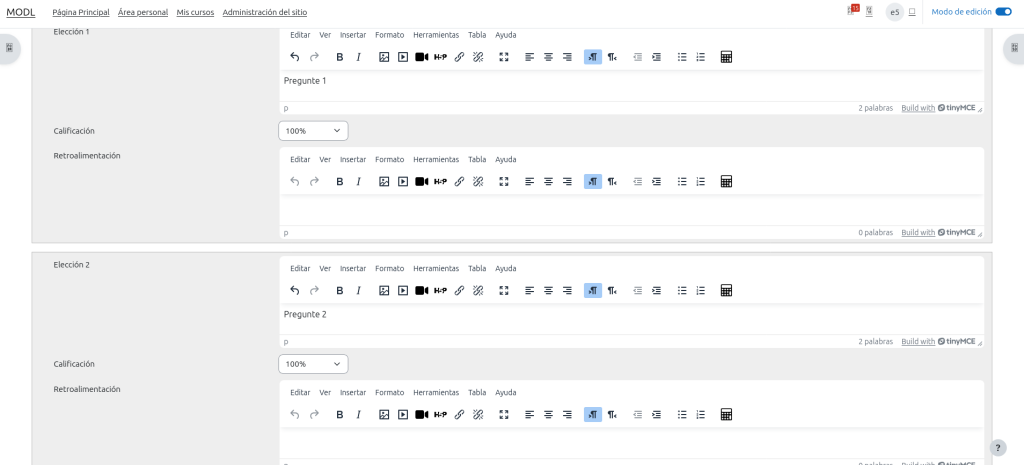
There are additional settings available, but they are optional. When you are finished, click Save to finalize the creation of your quiz.